> For the complete documentation index, see [llms.txt](https://docs.civictheme.io/llms.txt). Markdown versions of documentation pages are available by appending `.md` to page URLs; this page is available as [Markdown](https://docs.civictheme.io/content-authoring/components/list-components-and-cards/automated-list.md).
# Automated list
For developer reference on the underlying paragraph, view and hooks, see [Automated list (developer reference)](/development/drupal-theme/automated-list.md).
### Summary
The Automated List Component displays content that is automatically curated according to predefined criteria and presented in various "teaser" variants: Promo card, Navigation card, Snippet.
This section shows you how to add an Automated list.
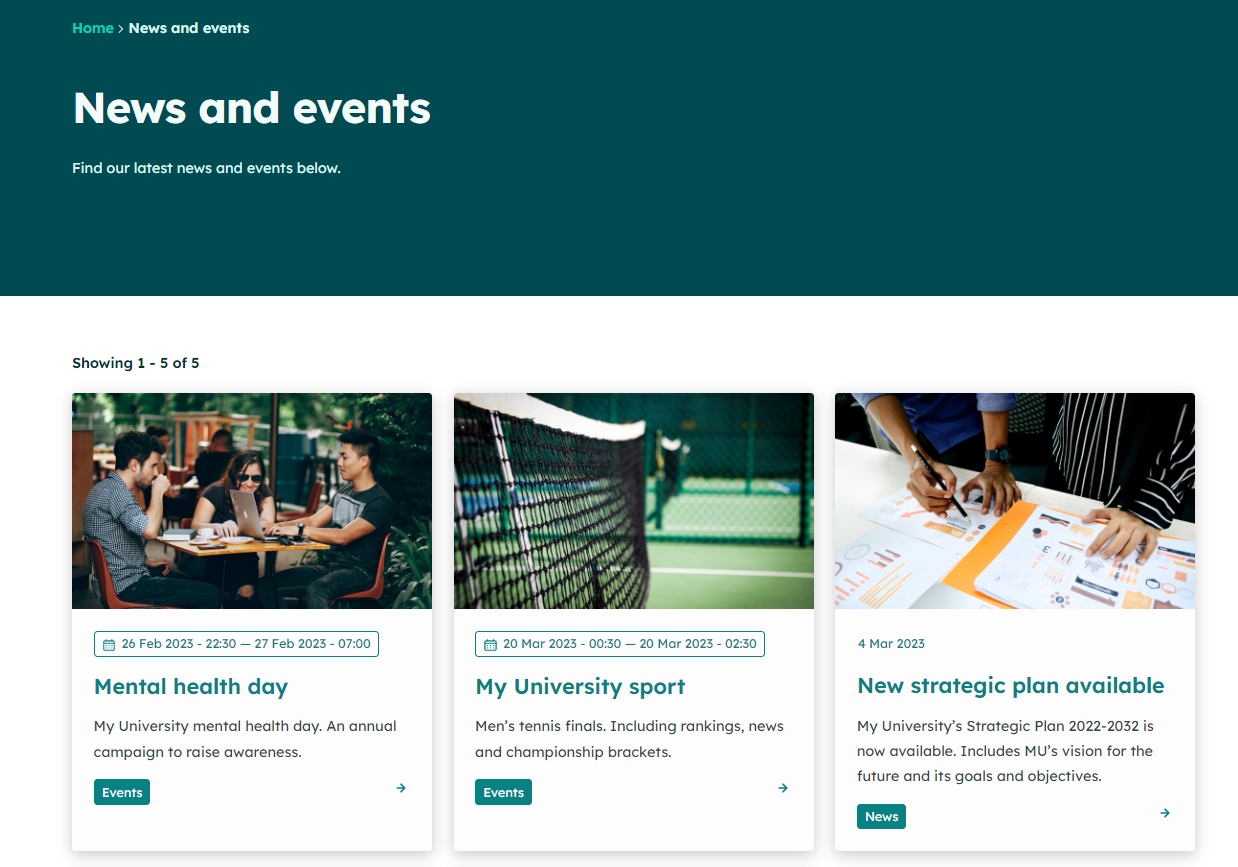
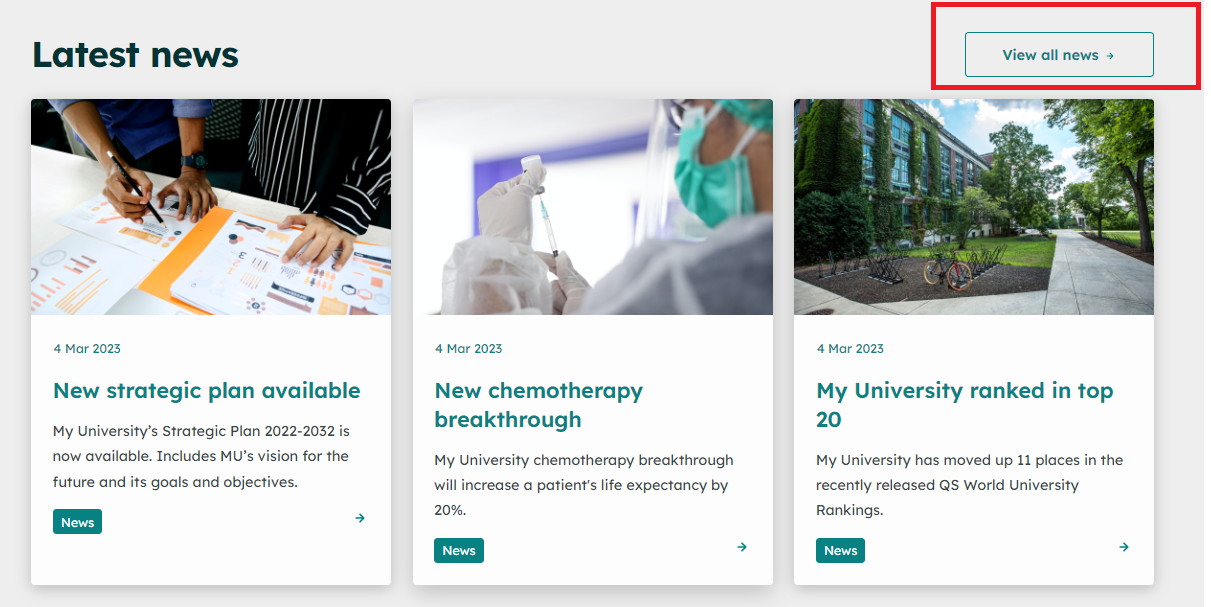
Below is an automated list. The content is being pulled from existing pages and displayed as \`Promo card\` components.
### How to add an automated list
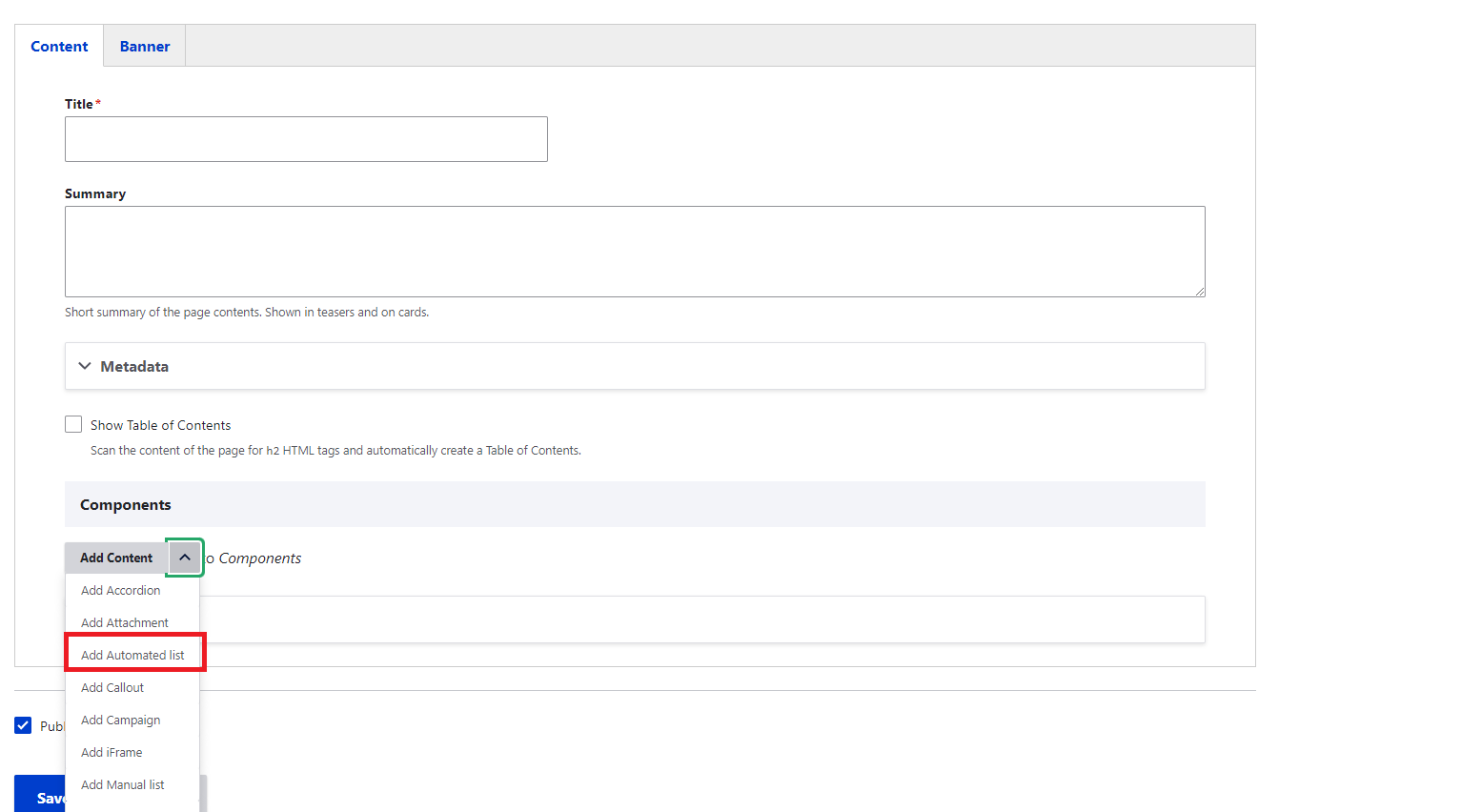
**Step 1**: Go to the page you'd like to add the automated list to (or create a new page) and in the Content tab, Components section, select Automated list from the dropdown list.
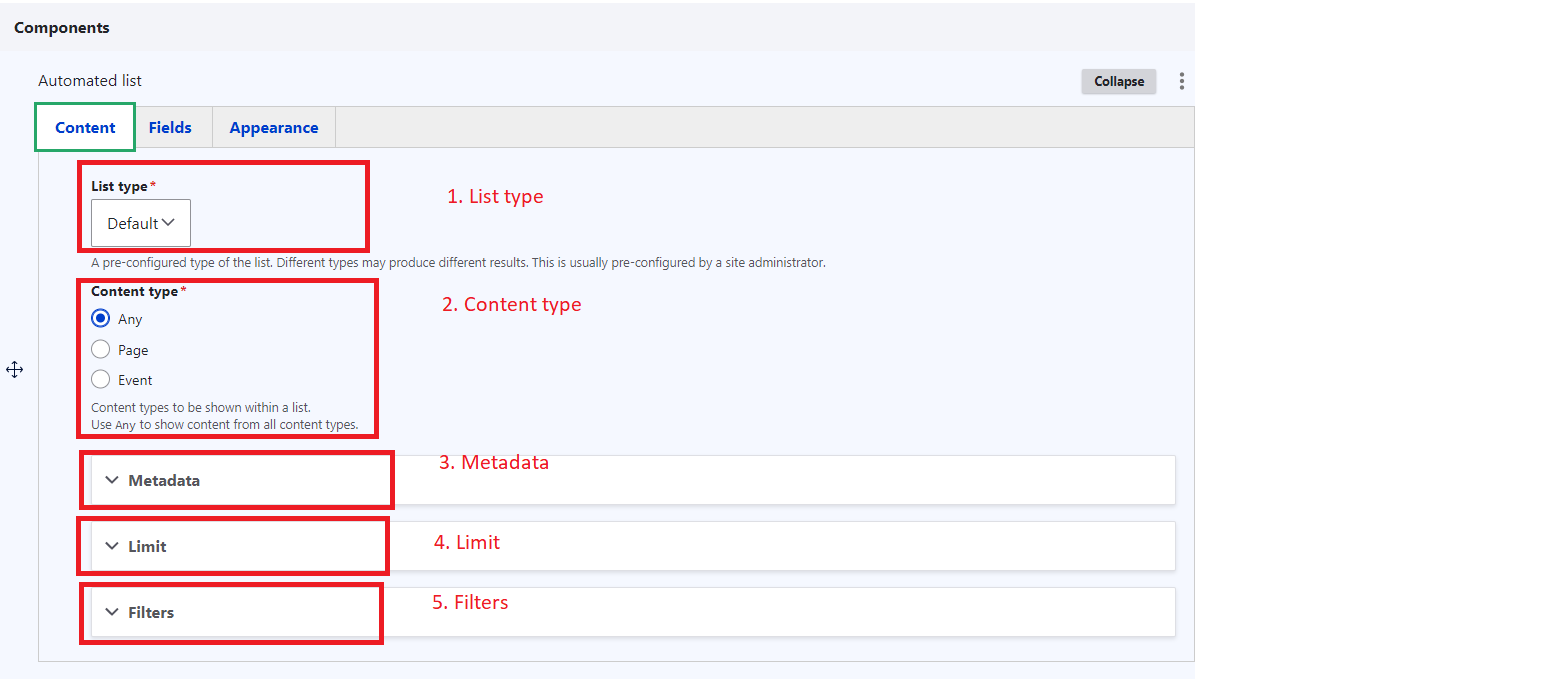
**Step 2**: Fill in the information for the **Content tab** as per below.
1. List type - controls how the content is aggregated . Out-of-the-box, CivicTheme comes with one list type. However, site administrators can set up different types of lists, that can then be selected from this dropdown.
2. Content type - filter content by the content types.
3. Metadata - further filter content by topic or site section.
4. Limit - how many results to display: unlimited or limited to the specified number.
5. Filters - choose to display filters at the top of the the automated list component.
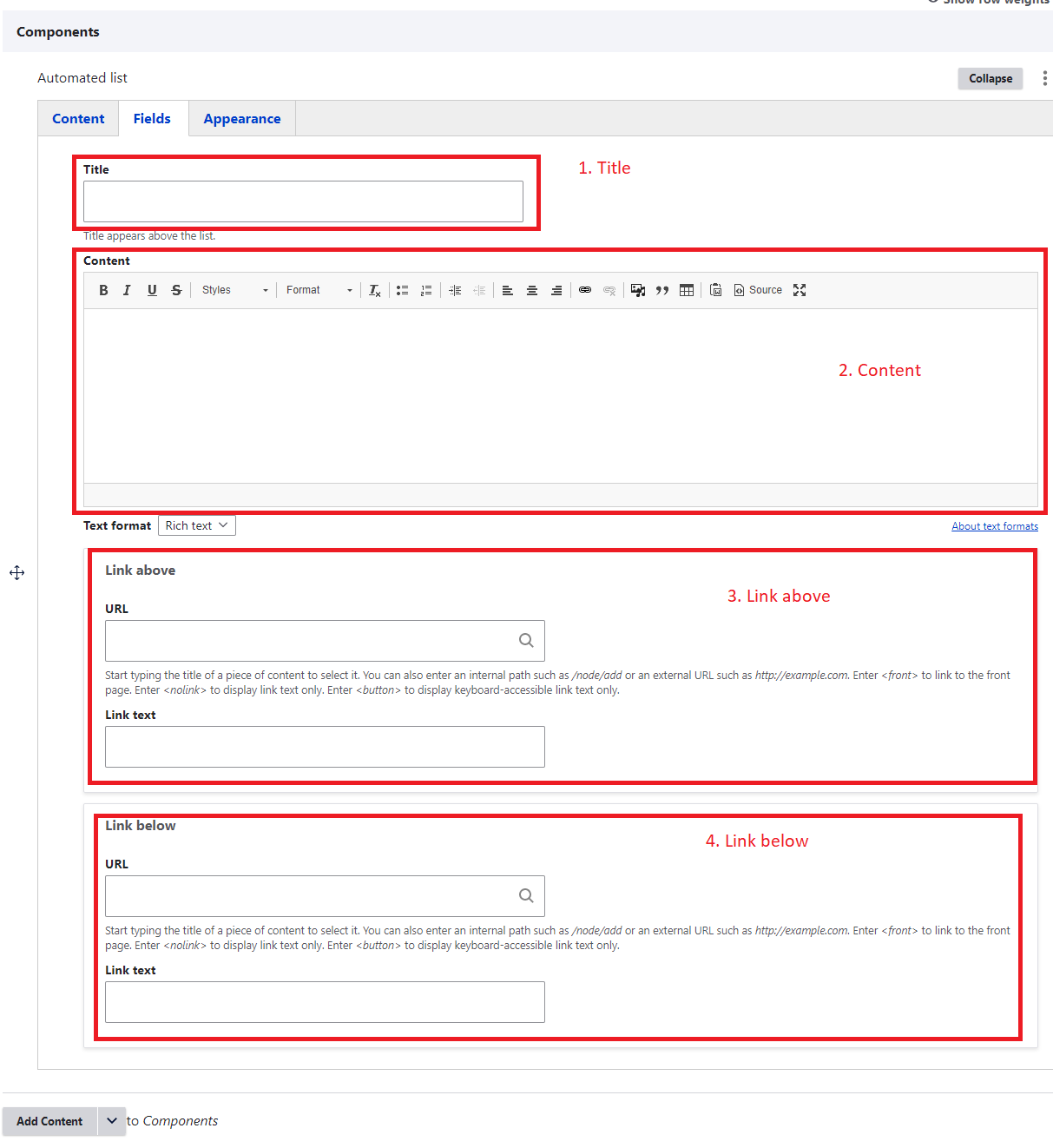
**Step 3**: Fill in the information for the **Fields tab** as per below.
1. Title - You can add a title to the automated list, such as 'Latest news'.
2. Content - You can also add introductory text to the automated list.
3. Link above - Aadd a link at the top of the automated list. See the screenshot below for an example.
4. Link below - You can also add a link below the automated list.
\
The screenshot above shows an automated list limited to three results, with the title of 'Latest news'. It also has a 'link above', which is highlighted.
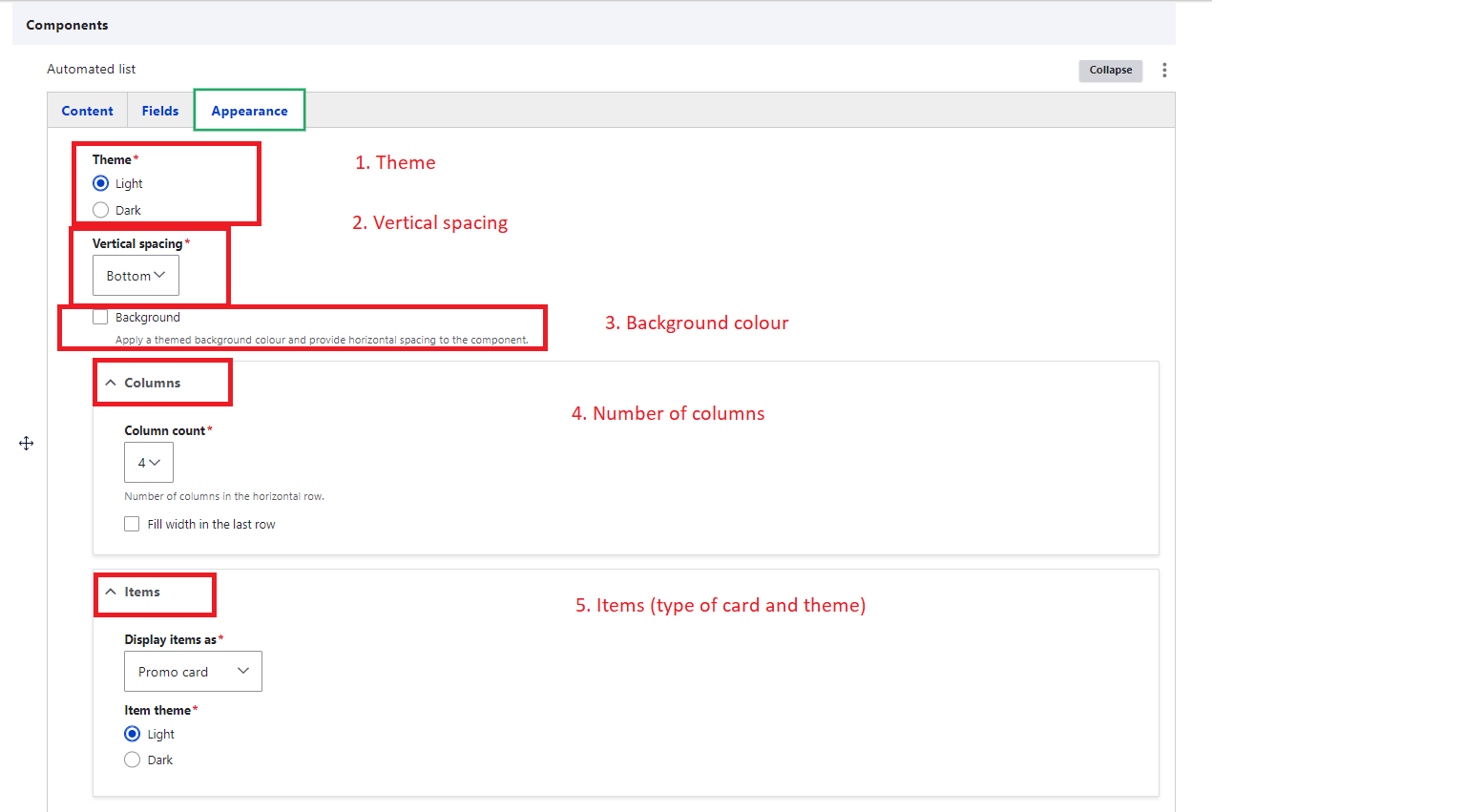
**Step 4**: Fill in the information for the **Appearance tab** as per below.
1. Theme - Select light or dark theme.
2. Vertical spacing - Add vertical spacing to the component if you'd like. Choices are none, top, bottom or both)
3. Background colour - Check the box to apply a default background colour from your colour palette.
4. Columns - Select how many columns to display (e.g. the screenshot above of 'Latest news' has three columns)
5. Items - Choose whether to display the list items as Navigation cards or Promo cards, and whether the cards will use the light or dark theme.
### Debugging sort order
If your automated list is returning content in an order you don't expect, the cause is the default sort order of the underlying view.
The first sort order applied to an automated list is **Promoted to front page**. This is intentional - it allows content authors to "stick" items to the top of an automated list for a particular area by promoting those items to the front page. Any promoted content will appear above non-promoted content, regardless of the secondary sort (e.g. authored date).
**If only one (or a few) nodes are out of order**, the first thing to try is editing the offending node, unticking **Promoted to front page** in the node form, and saving. This should fix the issue.
**If you want to change this behaviour across the board**, the systematic fix is to edit the underlying `civictheme_automated_list` view and remove the **Promoted to front page** sort criterion. After saving the view, your automated list will fall through to the next sort criterion (e.g. most recent first).
---
# Agent Instructions
This documentation is published with GitBook. GitBook is the documentation platform designed so that both humans and AI agents can read, navigate, and reason over technical content effectively. Learn more at gitbook.com.
## Querying This Documentation
If you need additional information that is not directly available in this page, you can query the documentation by asking a question.
Perform an HTTP GET request on the following URL with the `ask` and `goal` query parameters:
```
GET https://docs.civictheme.io/content-authoring/components/list-components-and-cards/automated-list.md?ask=&goal=
```
`ask` is the immediate question: it should be specific, self-contained, and written in natural language.
`goal` is what the user is ultimately trying to achieve, the reason they need the answer. Sharing it helps GitBook give you a better, more relevant answer. A goal is most helpful when it describes the outcome the user wants rather than restating the question. For example, with `ask=how do I create an API token`, a goal like `automate deployments from our CI pipeline` lets GitBook tailor the answer to that use case.
The response will contain a direct answer to the question and relevant excerpts and sources from the documentation.
Use this mechanism when the answer is not explicitly present in the current page, you need clarification or additional context, or you want to retrieve related documentation sections.